Introduction to Pandas
Pandas Objects
Pandas has several objects that are commonly used (i.e., Series, DataFrame, Index). At it's core, Pandas Objects are enhanced numpy arrays where columns and rows can have special names and there are lots of methods to operate on the data. See Jake Vanderplas's tutorial for a more in depth overview.Series
A pandasSeries is a one-dimensional array of indexed data.
Series can be easily created from dictionaries
DataFrame
If aSeries is a one-dimensional indexed array, the DataFrame is a two-dimensional indexed array. It can be thought of as a collection of Series objects, where each Series represents a column, or as an enhanced 2D numpy array.
In a DataFrame, the index refers to labels for each row, while columns describe each column.
First, let's create a DataFrame using random numbers generated from numpy.
DataFrame from multiple Series objects.
Loading Data
Loading data is fairly straightfoward in Pandas. Typepd.read then press tab to see a list of functions that can load specific file formats such as: csv, excel, spss, and sql.
In this example, we will use pd.read_csv to load a .csv file into a dataframe.
Note that read_csv() has many options that can be used to make sure you load the data correctly. You can explore the docstrings for a function to get more information about the inputs and general useage guidelines by running pd.read_csv?
pd.read_csv on the course's salary table. salary.get_file downloads it from the course's dataset on HuggingFace the first time and returns the path of the local copy; pd.read_csv would read a URL just as happily, but going through the dataset keeps a copy so the next run doesn't download it again.
Ways to check the dataframe
There are many ways to examine your dataframe. One easy way is to just call the dataframe variable itself.df.head() is useful for this purpose.
Series and double bracket returns a dataframe.
Let's return the first 10 rows of salary.
shape is another useful method for getting the dimensions of the matrix.
We will print the number of rows and columns in this data set using fstring formatting. First, you need to specify a string starting with 'f', like this f'anything'. It is easy to insert variables with curly brackets like this f'rows: {rows}'.
Here is more info about formatting text.
Describing the data
We can use the.describe() method to get a quick summary of the continuous values of the data frame. We will .transpose() the output to make it slightly easier to read.
value_counts method can be used for this goal.
For example, how many males and females are in this dataset?
Dealing with missing values
Data are always messy and often have lots of missing values. There are many different ways, in which missing data might presentNaN, None, or NA, Sometimes researchers code missing values with specific numeric codes such as 999999. It is important to find these as they can screw up your analyses if they are hiding in your data.
If the missing values are using a standard pandas or numpy value such as NaN, None, or NA, we can identify where the missing values are as booleans using the isnull() method.
The isnull() method will return a dataframe with True/False values on whether a datapoint is null or not a number (nan).
sum() of all of the null cases.
We can chain the .null() and .sum() methods to see how many null values are added up in each column.
.any() which will check if there are any True values for a given axis. Axis=0 indicates rows, while Axis=1 indicates columns. So here we are creating a boolean index for row where any column has a missing value.
dropna() method.
Create New Columns
You can create new columns to fit your needs. For instance you can set initialize a new column with zeros.Indexing and slicing Data
Indexing in Pandas can be tricky. There are many ways to index in pandas, for this tutorial we will focus on four: loc, iloc, boolean, and indexing numpy values. For a more in depth overview see Jake Vanderplas's tutorial](https://github.com/jakevdp/PythonDataScienceHandbook/blob/master/notebooks/03.02-Data-Indexing-and-Selection.ipynb), where he also covers more advanced topics, such as hierarchical indexing.Indexing with Keys
First, we will cover indexing with keys using the.loc method. This method references the explicit index with a key name. It works for both index names and also column names. Note that often the keys for rows are integers by default.
In this example, we will return rows 10-20 on the salary column.
Indexing with Integers
Next we wil try.iloc. This method references the implicit python index using integer indexing (starting from 0, exclusive of last number). You can think of this like row by column indexing using integers.
For example, let's grab the first 3 rows and columns.
.reset_index(drop=True) method? This is because assigning a new dataframe based on indexing another dataframe will retain the original index. We need to explicitly tell pandas to reset the index if we want it to start from zero.
Indexing with booleans
Boolean or logical indexing is useful if you need to sort the data based on some True or False value. For instance, who are the people with salaries greater than 90K but lower than 100K ?mask = df["salary"] > 62607
df[mask]
True/False, one per row — 38 of
77 rows are True. Passing it to df[...] keeps exactly those rows..loc method, which is what you need to do if you want to return specific columns
Numpy indexing
.values property. This returns a numpy array that can be indexed using numpy integer indexing and slicing.
As an example, let's grab the last 10 rows and the first 3 columns.
array([[53638, 0, 'math'],
[59139, 1, 'bio'],
[52968, 1, 'bio'],
[55949, 1, 'chem'],
[58893, 1, 'neuro'],
[53662, 1, 'neuro'],
[57185, 1, 'stat'],
[52254, 1, 'stat'],
[61885, 1, 'math'],
[49542, 1, 'math']], dtype=object)
Renaming
Part of cleaning up the data is renaming with more sensible names. This is easy to do with Pandas.Renaming Columns
We can rename columns with the.rename method by passing in a dictionary using the {'Old Name':'New Name'}. We either need to assigne the result to a new variable or add inplace=True.
Renaming Rows
Often we may want to change the coding scheme for a variable. For example, it is hard to remember what zeros and ones mean in the gender variable. We can make this easier by changing these with a dictionary{0:'male', 1:'female'} with the replace method. We can do this inplace=True or we can assign it to a new variable. As an example, we will assign this to a new variable to also retain the original lablels.
Operations
One of the really fun things about pandas once you get the hang of it is how easy it is to perform operations on the data. It is trivial to compute simple summaries of the data. We can also leverage the object-oriented nature of a pandas object, we can chain together multiple commands. For example, let's grab the mean of a few columns.plot method, which we will cover in more detail in future tutorials.
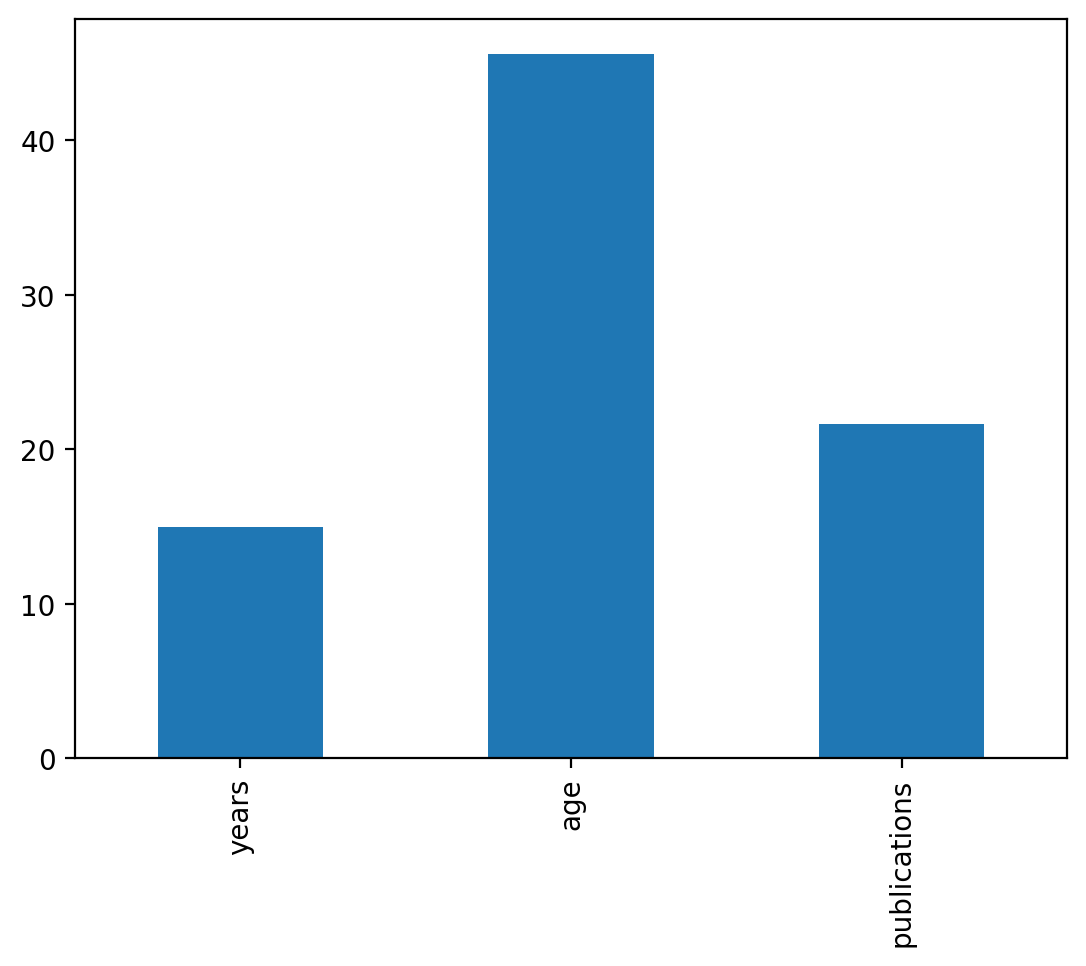
.corr method. More recent versions of Pandas might produce an error if there are any columns containing string data. To avoid this issue set numeric_only=True.
Merging Data
Another common data manipulation goal is to merge datasets. There are multiple ways to do this in pandas, we will cover concatenation, append, and merge.Concatenation
Concatenation describes the process of stacking dataframes together. Older versions of pandas also had an.append() method, which has been deprecated since pandas 1.4. The main thing to consider is to make sure that the shapes of the two dataframes are the same as well as the index labels. For example, if we wanted to vertically stack two dataframe, they need to have the same column names.
Remember that we previously created two separate dataframes for males and females? Let's put them back together using the pd.concat method. Note how the index of this output retains the old index.
reset_index method.
Merge
The most powerful method of merging data is using thepd.merge method. This allows you to merge datasets of different shapes and sizes on specific variables that match. This is very common when you need to merge multiple sql tables together for example.
In this example, we are creating two separate data frames that have different states and columns and will merge on the State column.
First, we will only retain rows where there is a match across dataframes, using how=inner. This is equivalent to an 'and' join in sql.
State column, but retain all rows. This is equivalent to an 'or' join.
Grouping
We've seen above that it is very easy to summarize data over columns using the builtin functions such aspd.mean(). Sometimes we are interested in summarizing data over different groups of rows. For example, what is the mean of participants in Condition A compared to Condition B?
This is suprisingly easy to compute in pandas using the groupby operator, where we aggregate data using a specific operation over different labels.
One useful way to conceptualize this is using the Split, Apply, Combine operation (similar to map-reduce).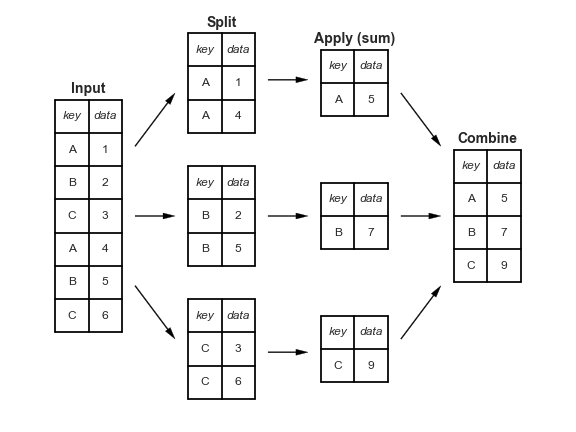 This figure is taken from Jake Vanderplas's tutorial and highlights how input data can be split on some key and then an operation such as sum can be applied separately to each split. Finally, the results of the applied function for each key can be combined into a new data frame.
Groupby
In this example, we will use thegroupby operator to split the data based on gender labels and separately calculate the mean for each group. Note that newer versions of pandas might throw an error if you try to perform a numeric computation such as .mean() on a dataframe containing columns of string data. Use the flag numeric_only=True to avoid this issue.
df.groupby("departm")["salary"].mean()
departm, apply mean to each group's salary,
and combine the answers into one Series:.count(), .mean(), .median(), .min(), .max(), .std(), .var(), and .sum()
Transform
While the split, apply, combine operation that we just demonstrated is extremely usefuly to quickly summarize data based on a grouping key, the resulting data frame is compressed to one row per grouping label. Sometimes, we would like to perform an operation over groups, but retain the original data shape. One common example is standardizing data within a subject or grouping variable. Normally, you might think to loop over subject ids and separately z-score or center a variable and then recombine the subject data using a vertical concatenation operation. Thetransform method in pandas can make this much easier and faster!
Suppose we want to compute the standardized salary separately for each department. We can standardize using a z-score which requires subtracting the departmental mean from each professor's salary in that department, and then dividing it by the departmental standard deviation.
We can do this by using the groupby(key) method chained with the .transform(function) method. It will group the dataframe by the key column, perform the "function" transformation of the data and return data in same format. We can then assign the results to a new column in the dataframe.
lambda function, where we can define the zscore function.
Reshaping Data
The last topic we will cover in this tutorial is reshaping data. Data is often in the form of observations by features, in which there is a single row for each independent observation of data and a separate column for each feature of the data. This is commonly referred to as as the wide format. However, when running regression or plotting in libraries such as seaborn, we often want our data in the long format, in which each grouping variable is specified in a separate column. In this section we cover how to go from wide to long using themelt operation and from long to wide using the pivot function.
Melt
Tomelt a dataframe into the long format, we need to specify which variables are the id_vars, which ones should be combined into a value_var, and finally, what we should label the column name for the value_var, and also for the var_name. We will call the values 'Ratings' and variables 'Condition'.
First, we need to create a dataset to play with.
Pivot
We can also go back to the wide data format from a long dataframe usingpivot. We just need to specify the variable containing the labels which will become the columns and the values column that will be broken into separate columns.
Exercises ( Homework)
The following exercises uses the dataset "salary_exercise.csv" adapted from material available here These are the salary data used in Weisberg's book, consisting of observations on six variables for 52 tenure-track professors in a small college. The variables are:- sx = Sex, coded 1 for female and 0 for male
- rk = Rank, coded
- 1 for assistant professor,
- 2 for associate professor, and
- 3 for full professor
- yr = Number of years in current rank
- dg = Highest degree, coded 1 if doctorate, 0 if masters
- yd = Number of years since highest degree was earned
- sl = Academic year salary, in dollars.
Exercise 1
Read the salary_exercise.csv into a dataframe, and change the column names to a more readable format such as sex, rank, yearsinrank, degree, yearssinceHD, and salary. Clean the data by excluding rows with any missing value. What are the overall mean, standard deviation, min, and maximum of professors' salary?Graded version
The graded version of these questions is the Pandas assignment at the end of this page. Open it with the Assignment button in the header — it runs in a drawer at the bottom of the page, so you can keep this chapter open while you work. Sign in with your Dartmouth account inside it and submit each question when you are ready.Exercise 2
Create two separate dataframes based on the type of degree. Now calculate the mean salary of the 5 oldest professors of each degree type.Exercise 3
What is the correlation between the standardized salary across all ranks and the standardized salary within ranks?Assignment: Introduction to Pandas
- Q1. Load and clean
- Q2. Describe the salaries
- Q3. The most senior professors of each degree
- Q4. Salary by rank, and by sex
- Q5. Interpretation
Open in molab
Opens in a drawer at the bottom of the page, so you can keep reading while you work. Autosaves in this browser.