Setting up Python
Written by Luke Chang Everything in this course is written in Python, and every chapter is a notebook you can open and run yourself. This page gets you from nothing to a working setup, and explains the two tools you will use constantly: uv to manage Python, and marimo to run notebooks. You do not need this page to read the course. Every chapter runs in your browser on this site. You need it when you want to run the code on your own machine — which you will, as soon as you want to try something the chapter did not do. Python is a modular interpreted language with a small, readable syntax, and it has become the common language of computational research. The same language you learn here is used for stimulus presentation, statistics, machine learning, deep learning, and neuroimaging analysis — which is why it is worth learning once, properly.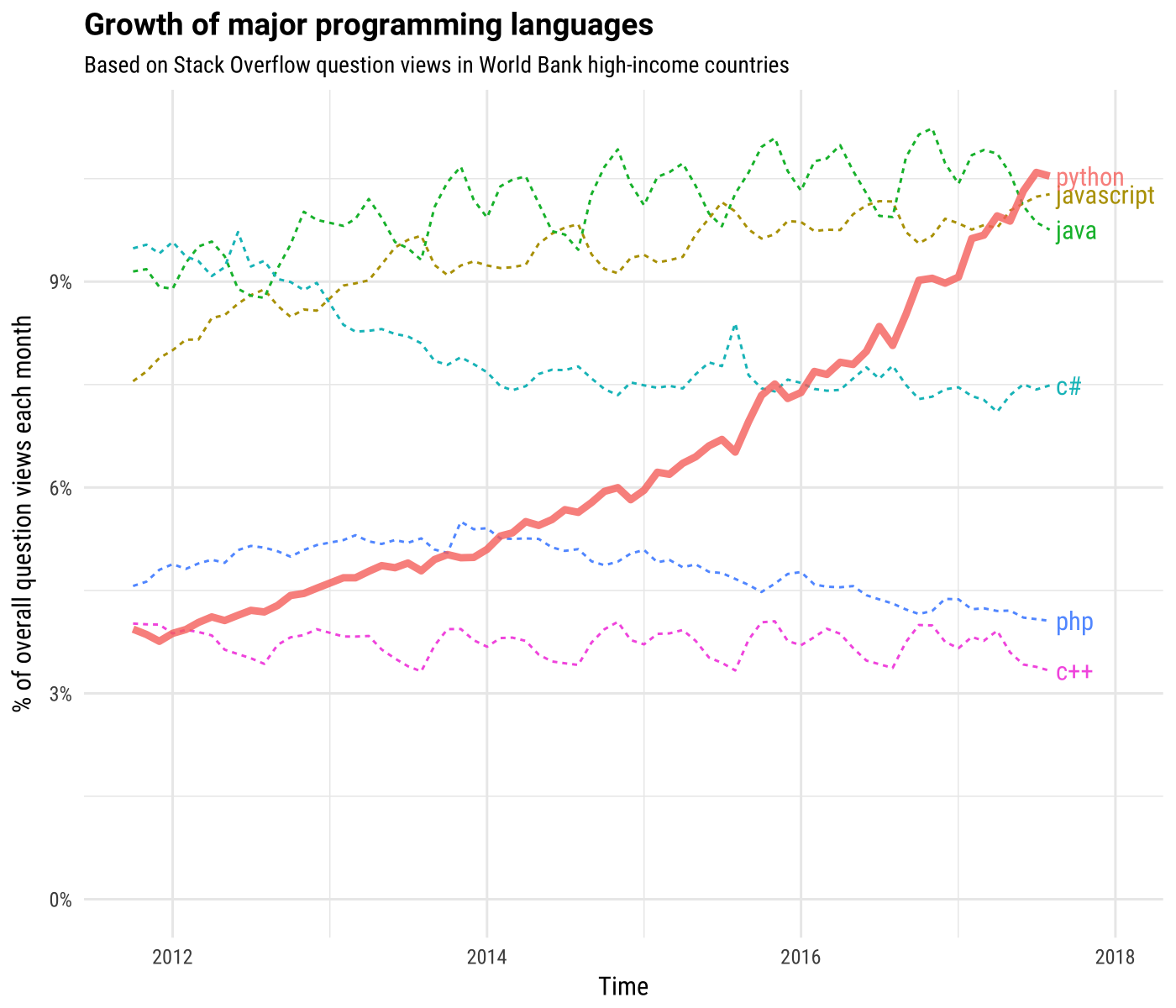
Installing Python with uv
uv installs Python itself and manages your project's packages. It replaces the older tangle of pyenv, virtualenv, pip and conda with one tool, and it is fast enough that you stop thinking about it.
1. Install uv
macOS / Linux
Windows
2. Set up the course
uv sync reads pyproject.toml, installs the right Python version, creates the virtual
environment, and installs every package the course needs. There is no separate "install
Python" step and no environment to activate.
3. Open a notebook
uv run runs a command inside the project's environment. Prefixing with uv run is the
whole workflow — there is nothing to activate and nothing to remember:
Coming from conda?
You can keep using conda if you already have it working. But uv sync does in one
command what conda needs an environment.yml, a conda env create and a
conda activate to do, it resolves dependencies in seconds rather than minutes, and it
pins exact versions in uv.lock so everyone in the class gets an identical environment.
The course is set up for uv, and the instructions here assume it.
Marimo notebooks
We use marimo rather than Jupyter. A marimo notebook is a
reactive Python notebook stored as a plain .py file — no JSON, no out-of-order
execution traps, and diffs you can actually read in git.
A notebook is made of cells, and there is only one kind: every cell is Python.
Prose is written by calling mo.md(r"...") and letting the cell evaluate to that
markdown object — this cell is doing exactly that.
Reactive execution
The important difference from Jupyter. marimo works out which variables each cell defines and which it reads, and builds a dependency graph. Change a cell, and every cell that depends on it re-runs automatically.
This kills a whole class of bug. In Jupyter, a notebook's output can reflect code you have since edited or deleted — you get results that no version of your code would actually produce. In marimo, what you see always matches the code on screen.
The price is one rule: a variable name can only be defined in one cell. If you want
to reuse a name for a quick experiment, prefix it with an underscore (_x) to make it
local to that cell.
Working in a notebook
| Run a cell | Ctrl/⌘ + Enter |
| Run and add a cell below | Ctrl/⌘ + Shift + Enter |
| Add a cell | the + between cells |
| Hide a cell's code | the eye icon in the gutter |
Whatever a cell's last expression evaluates to is what gets displayed: mo.md(...)
for prose, plt.gcf() for a figure, a DataFrame for a table, mo.ui.slider(...) for a
control. A cell ending in an assignment or a print() shows nothing — that catches
everyone at least once.
Hello World
Adding packages
marimo has a package manager built in. import something that is not installed and it
offers to install it, then records the dependency in pyproject.toml so the environment
stays reproducible. You will see auto-managed comments like this near such cells:
# packages added via marimo's package management: pandas, numpy
import pandas as pd
import numpy as np
From a terminal, uv does the same thing explicitly:
uv add scikit-learn      # add a dependency and install it
uv add --dev pytest      # development-only
uv sync                  # make the environment match pyproject.toml
uv lock --upgrade        # update the pinned versions
Prefer uv add over pip install for project work. uv add records what you installed;
pip install leaves the next person to guess.
Where to get help
- Python's own tutorial — the official one, and still the best written.
- Jeremy Manning's and Yaroslav Halchenko's Dartmouth courses.
- Stack Overflow — someone has almost certainly hit your error before. Paste the last line of the traceback.
- marimo's docs and uv's docs.
When something breaks, read the last line of the traceback first. It names the error and usually the fix. The lines above it are the path the interpreter took to get there, which matters only once the last line is not enough.
Next: Introduction to Programming, which runs entirely in your browser — no setup required.